 VGrab
VGrabWhat "download just one part" means
Sometimes you want twenty minutes out of a two-hour video: one lesson in a tutorial, the highlight of a stream replay, one song from a concert. Downloading it all and trimming in an editor is slow, wastes space and requires knowing an editor. VGrab's section download fetches only the part you want — only those bytes — and saves a playable file.
Three steps
- Open the video page, press play, click the extension icon, click the Section download tab.
- Set From and To, or drag the two handles on the timeline; the line "will actually save … – …" shows the real start and end. Press + on the right of the timeline to add the range to the list. Add as many as you like — the list is exactly what gets saved.
- Press "Save the N selected ranges". Each range becomes its own file, and the notification carries the time range too.
Verified example
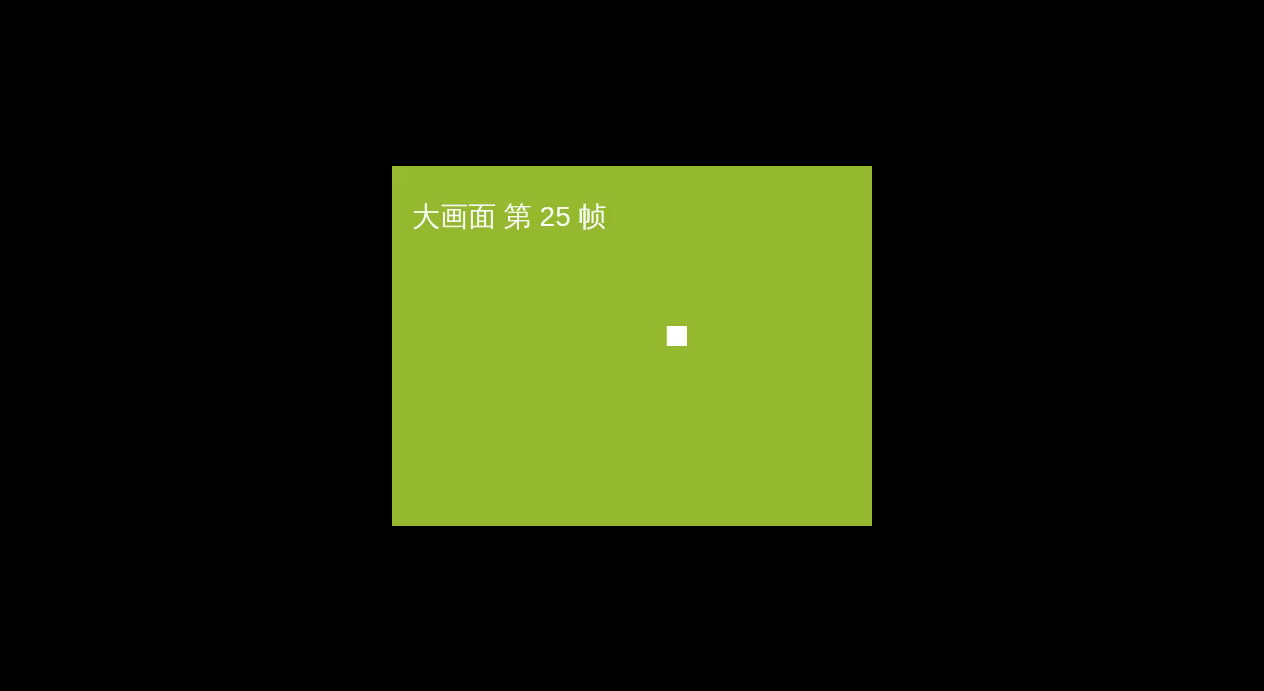
The duration can extend to the next chunk boundary. The screenshot comes from the actual output file. Install from the official Chrome Web Store listing, or read about recording a live stream.
What you get
A normal MP4 whose name carries the time range, e.g. video [00-40-00~01-00-00].mp4; phones, TVs and editors open it directly. Several ranges give several files, each named with its own range.
The start backs up a little from what you typed: video arrives in chunks and can only begin at a chunk boundary, so the real start is the nearest boundary before your time. The "will actually save" line shows exactly that.
Versus "download all, then trim"
- Amount: fetches the selected ranges plus the keyframe and index data needed to play them. Traffic is not exactly proportional to the selected duration; the verified example above shows the actual ratio for one file.
- Speed: avoids waiting for a full download and a separate editor import and export. Actual time depends on the source server, file structure and selected range.
- Quality: packets are moved as-is, without re-encoding. An editor that re-encodes the video can lose a generation of quality.
- Tools: just this extension, no editor to install or learn.
- Disk: no full-length copy taking space first.
Edge cases, already handled
A whole-file MP4, not a stream? Yes. It asks the server for just that byte range and, after reading the keyframe index and decoder setup, moves only that range's packets; if the server doesn't support ranges it falls back to the whole file and tells you.
A live stream? No — a live stream has no "minute X to minute Y"; what has passed is gone. Live uses Record: click to start, click to stop.
A time past the end? It snaps back to the video length when you leave the box, so a two-hour video can't get a "2:16" range. A backwards range (To before From) is flagged.
Already downloaded the whole video — will it ask to overwrite? No. A range is a separate file named with its time range; it doesn't clash with the full one.
Audio only for that part? Audio only and Section download work together; you get that range as an m4a.
When it's especially handy
- A multi-hour course where you only need one lesson, saved as a small file for your phone.
- A stream replay of several hours where you keep only the twenty-minute highlight.
- A concert or match compilation where you want one song, one game.
- A slow or metered connection where the whole video is too much — take only the part you'll watch.
Together with audio only
Want only the audio of one part of an interview? Set the range, then choose Audio only — you get that range as an m4a. Its size depends on the audio encoding and duration, and is usually smaller than the same range with video.
Common questions about section downloads
Accurate to the second? You can type seconds. The start snaps to the nearest chunk boundary before it (usually within a few seconds), the end to the one after.
Several ranges in one go? Yes. Every range in the list becomes a file; one press of Save queues them all.
Sites with separate video and audio tracks? Yes. The two tracks are moved interleaved by timestamp, and you still get one file with sound.
Keep reading
- Video downloader: no daily quota, no sign-up
- How to download a video from a website
- How to install VGrab: from a store, or the ZIP package
- How to download an m3u8 stream as one video file
- Does a download extension send my data back
- VGrab frequently asked questions
- Why a video download fails, and the fixes